
How to Remove Tour Branding and Other Elements When Sharing Your Tours

Use special share URLs to customize the tour experience. This is useful for sharing to MLS sites which have strict rules on branding.
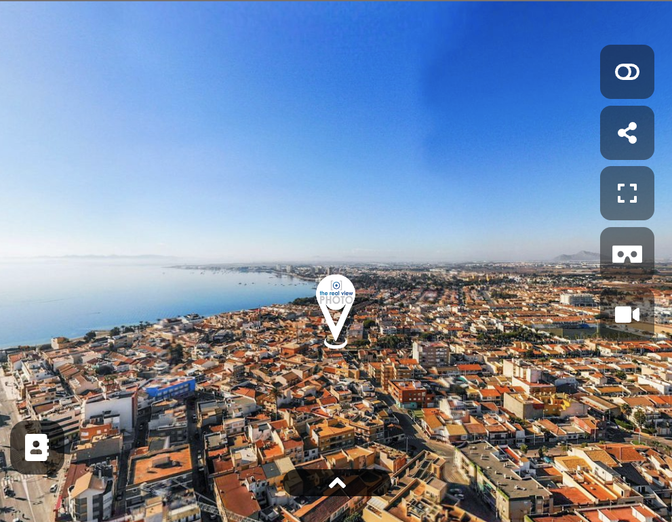
Sometimes, you need to customize a tour when embedding it on a real estate multi-listing (MLS) site or an auto dealership website. You can customize how a tour is displayed without actually editing the tour by appending a special ?disable= to the tour URL, and then specifiying what exactly you want to disable. For example, ?disable=logo.
One scenario where this feature would be used is when embedding a tour on an MLS site that requires all branding and logos of a tour to be removed.
Before:
Sometimes, you need to customize a tour when embedding it on a real estate multi-listing (MLS) site or an auto dealership website. You can customize how a tour is displayed without actually editing the tour by appending a special ?disable= to the tour URL, and then specifiying what exactly you want to disable. For example, ?disable=logo.
One scenario where this feature would be used is when embedding a tour on an MLS site that requires all branding and logos of a tour to be removed.
Before:
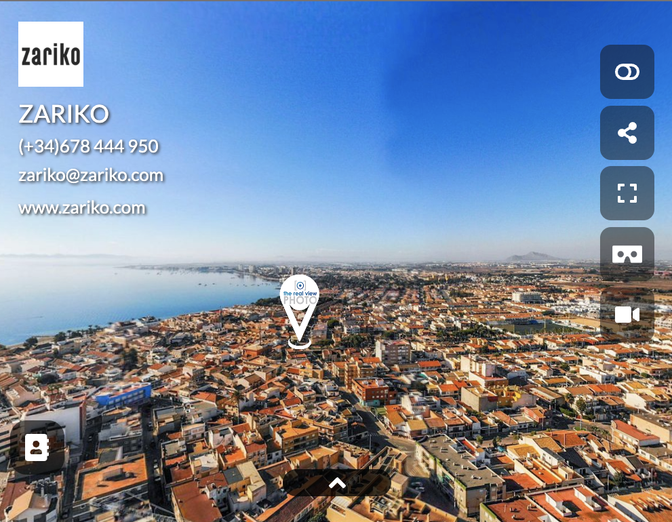
After:
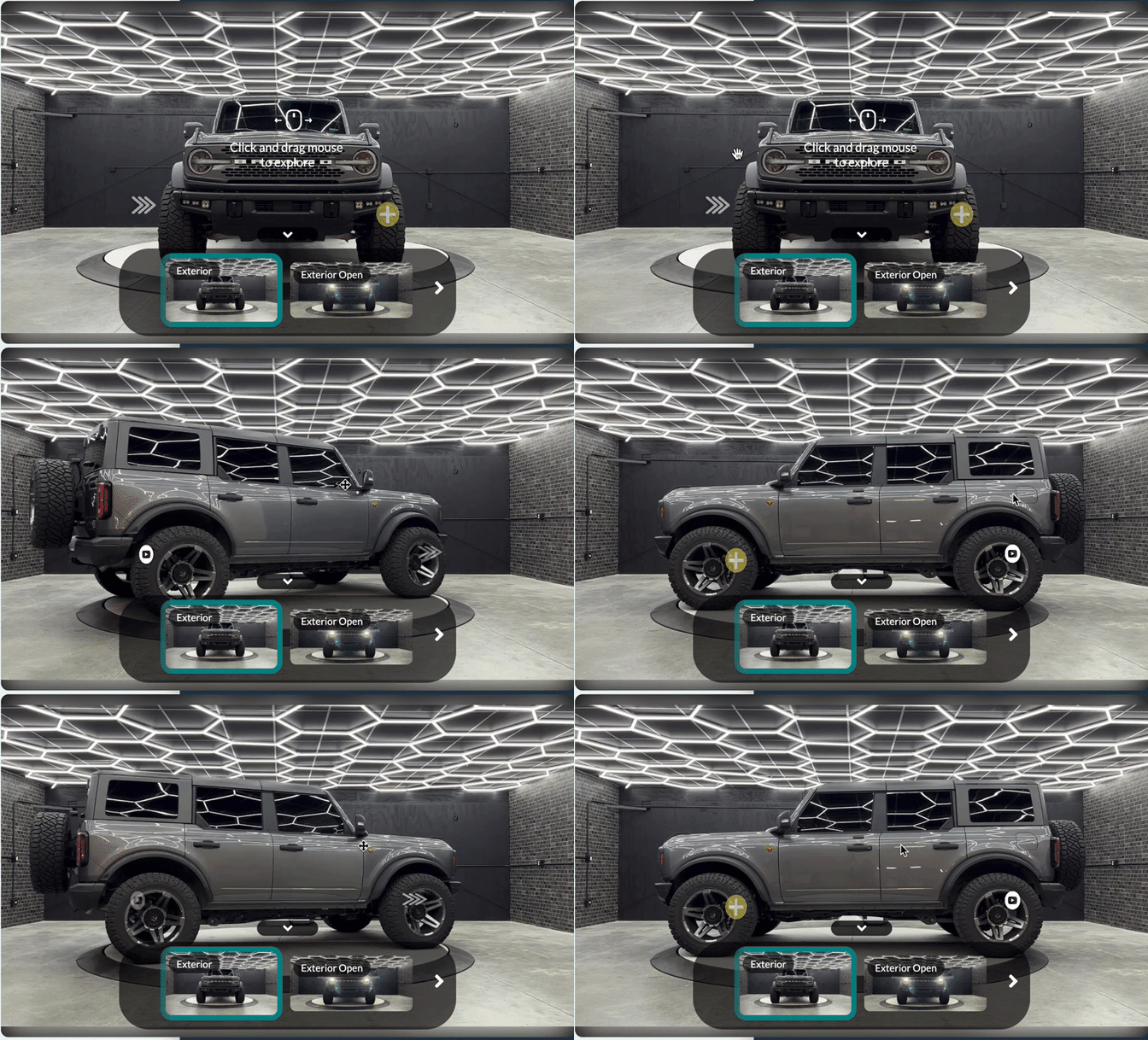
Another example is that sometimes automotive spins look best with the sidebar buttons removed.
Doesnt this look great?:
How to use the disable feature
If you want to incorporate the removal of tour elements in CloudPano tours, simply append to the CloudPano URL options like this:
https://app.cloudpano.com/tours/DEMO?disable=logo,sound,ribbon,request,leadgen,floorplan,watermark,controls
You can put whatever you want after ?disable= :
logo: top left logo
sound: disable ambient sound if it exists
ribbon: scene thumbnails
request: disable lead capture button if it exists
floorplan: disable floorplans if it exists
watermark: remove client-entered watermark if it exists
controls: remove all buttons such as sharing/external links