
Apple iOS devices that have built-in lidar scanning.
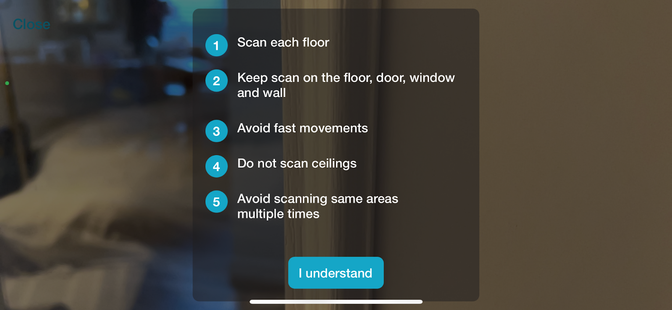
To prepare a space, open all doors, closest doors and bedroom doors. Turn on all the lights in each room. When scanning, make sure you scan corners of each room and try to avoid scanning the same area twice.
3 to 6 feet is optimal.
When you are finished scanning, tap ‘save.’
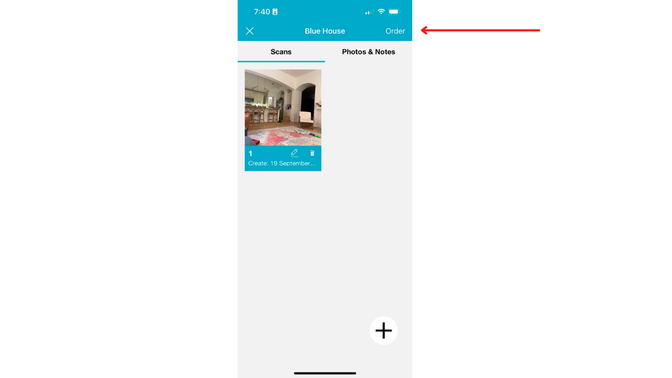
Tap photos and notes during the order process to note or photograph special areas.
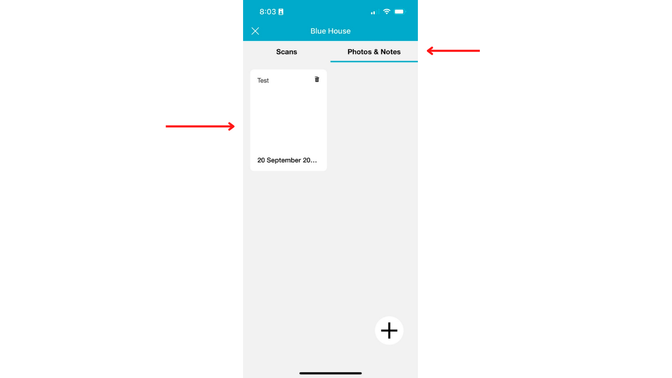
We do not recommend scanning outside. Floor plans are for interiors only.
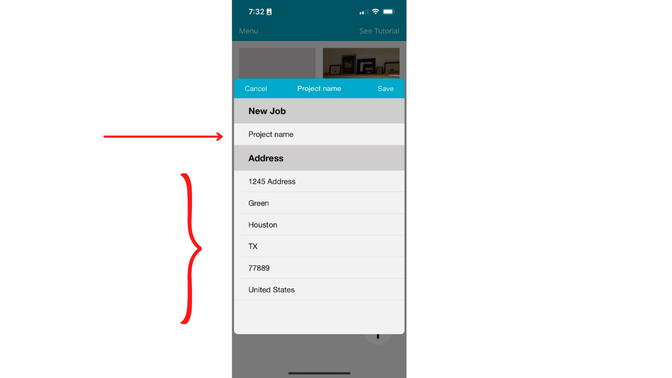
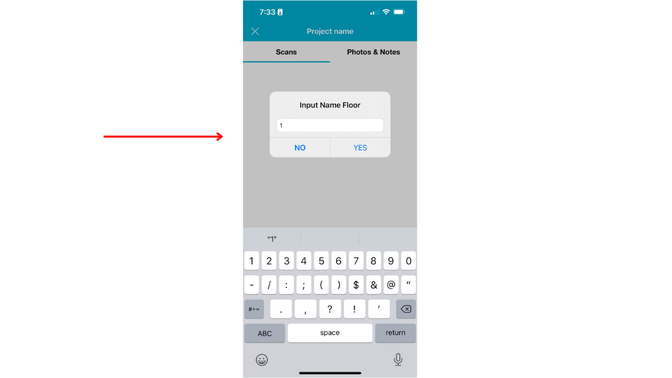
Note the number of levels when placing your order:
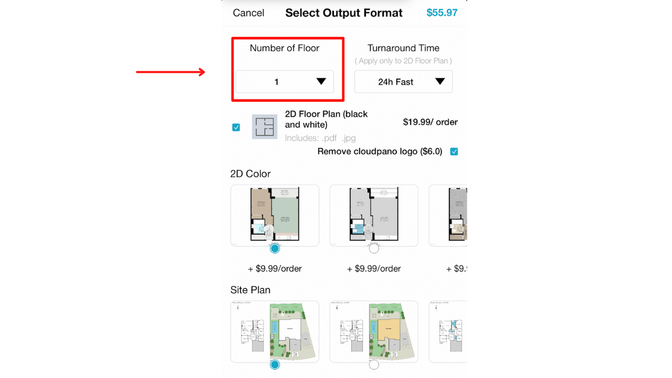
Yes! Add the 2nd and 3rd levels of your order for free!
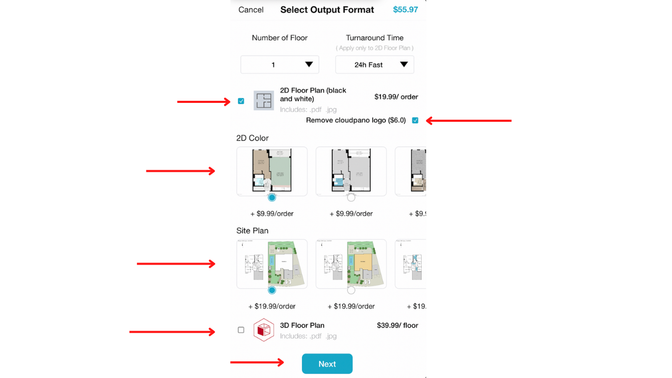
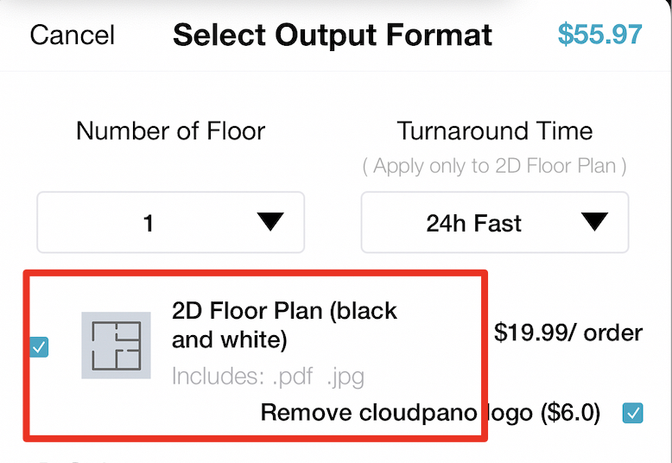
Make sure this order type is selected:
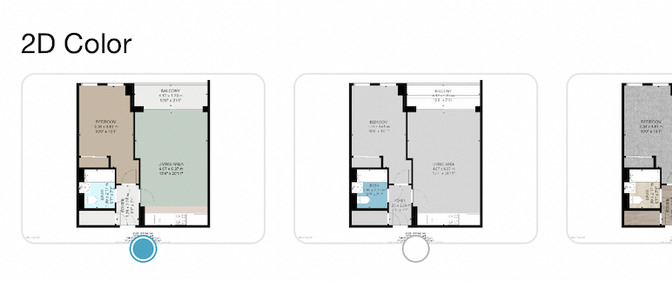
Select the add on option to add color
Select the 3D Floor Plan option.
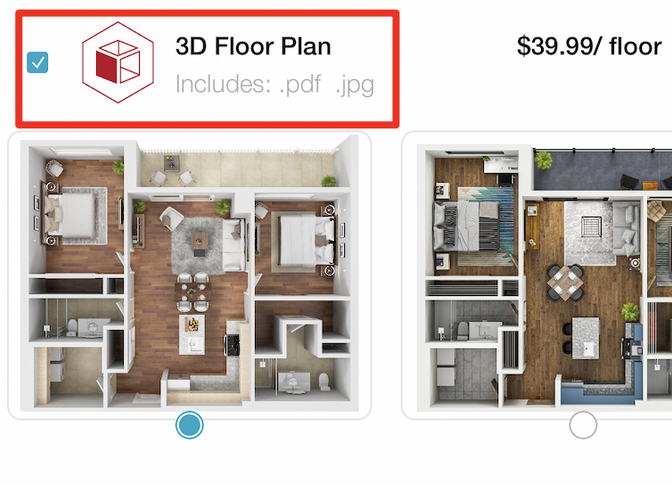
Currently, the 3D floor plan does not include measurements.
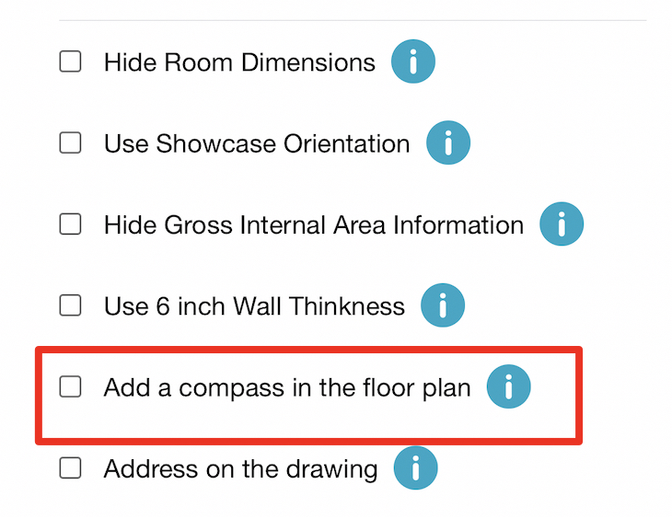
Select advanced options and tap the compass box.
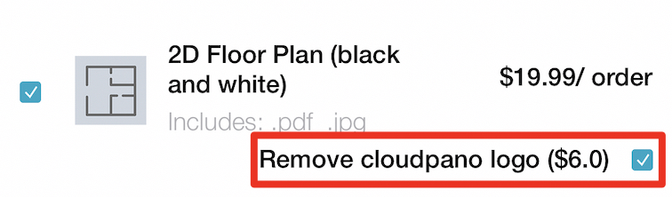
Select ‘Remove CloudPano Logo’
This will 100% white label your floor plan order
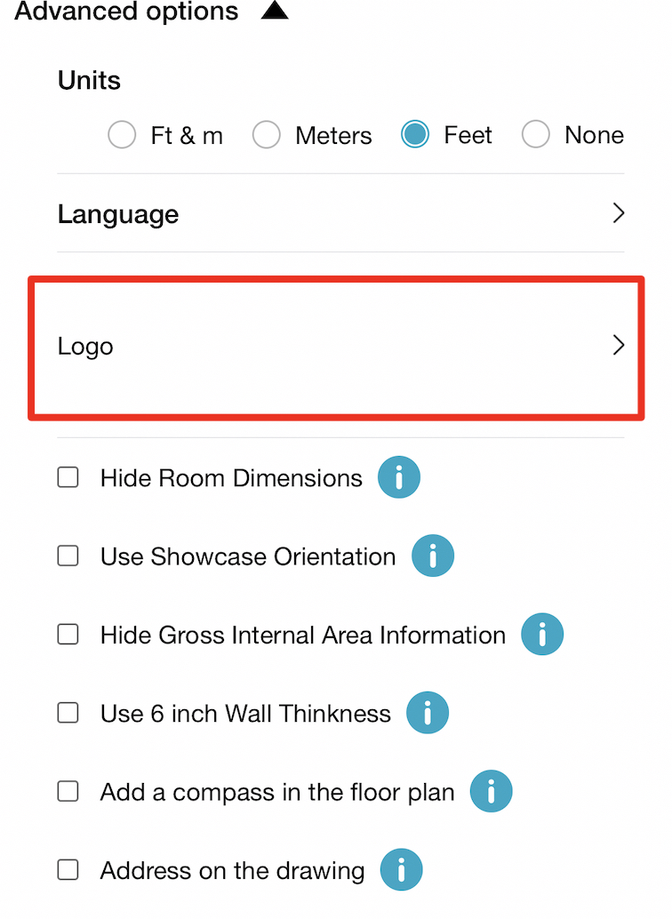
Select the logo option:
10,000 Square feet is the limit. If you need to go beyond this, submit your order normally and we will reach out via email for a small price increase. Otherwise, all levels are included.
The typical turnaround time for 2D floor plans is 24 hours.
The typical turnaround time for 3D floor plans is 48 hours.
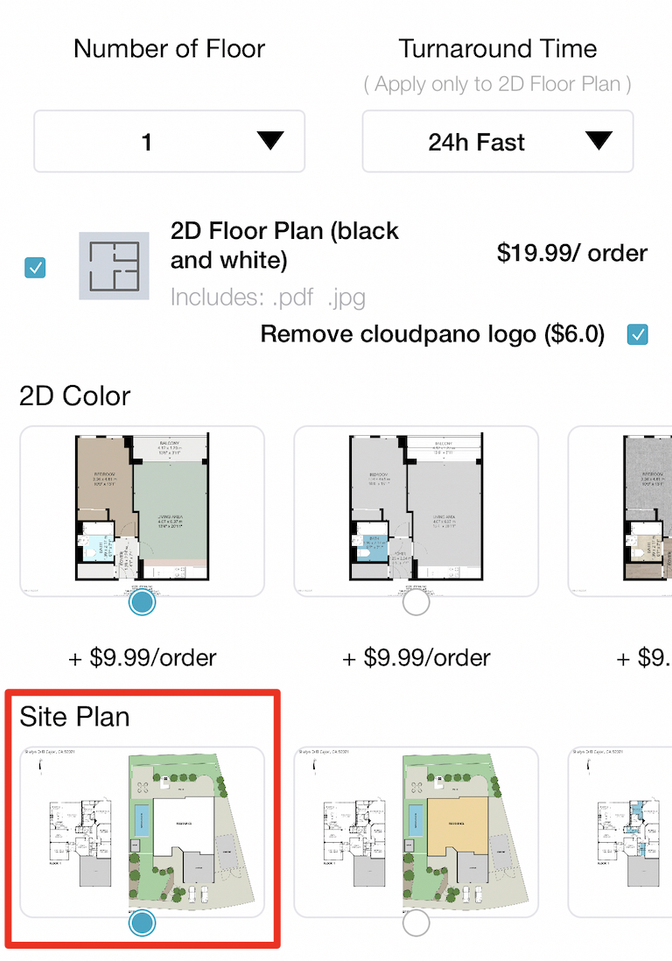
Select the site plan option when ordering.
Manage, view, download and request changes on the ‘My Orders’ tab, or visit https://floorplans.cloudpano.com/my-account/orders/
Manage, view, download and request changes on the ‘My Orders' tab, or visit https://floorplans.cloudpano.com/my-account/orders/
You can download your floor plans in the ‘My Orders' section on the app. Or you can visit, https://floorplans.cloudpano.com/my-account/orders/ and log in with your same login to download on your desktop or laptop.
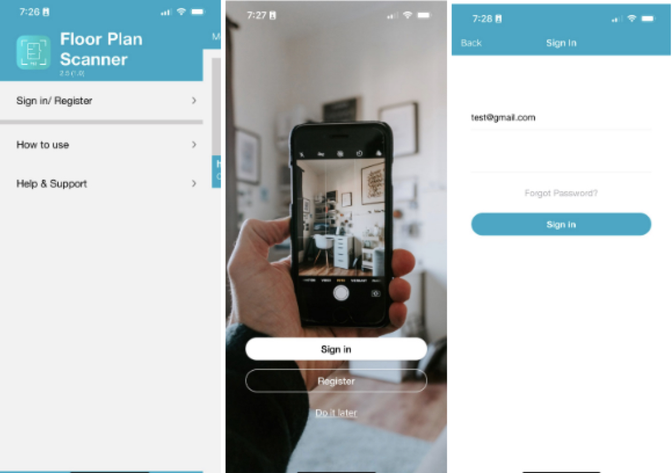
When you first log in to the Floor Plan Scanner app, you will be asked to create a user name and password. To view your orders online via desktop/laptop, use these same login credentials. To see your orders visit https://floorplans.cloudpano.com/my-account/orders/
Yes! We highly recommend you give your team the same login. This way each order that is created will be tracked on the same account and easy to find, manage and download.
We have the option to order 5-floor plans in advance and get 1 free. This offer includes our referral program. To place a 5 Pack Bundle and Referral Program order, click here: https://buy.cloudpano.com/floor-plan-bundle-5-pack/
Join our referral program by ordering the 5 Pack Bundle and Referral Program. Click here: https://buy.cloudpano.com/floor-plan-bundle-5-pack/
Yes! All of our 2D floor plans include measurements of the room and total square footage of the level.
Yes! All of our 2D floor plans include fixed furniture. Fixed furniture includes sinks, ovens, bathtubs, toilets, etc.
Yes! All of our 2D floor plans include GLA square footage on the plan.
English, French, German, Spanish, Portuguese, Slovakia
Paypal, Visa, Mastercard and any stripe integrated credit card payment methods.