Imagine this scenario: You build your virtual tour, ship it to your client, only to find out they are dissatisfied with your post-processing or image quality. Improving images would typically require you to remake your entire tour with the new images.
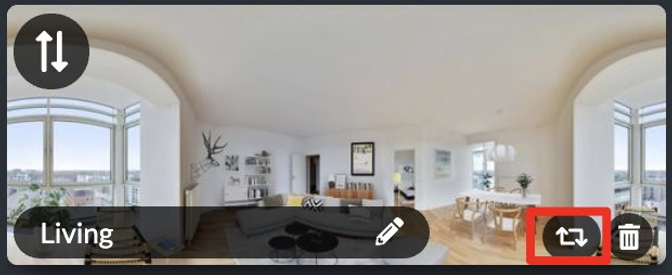
Rather than remake your entire tour and waste hours, we provide an "Image Swap" feature that allows you to "swap" one image for another one for any given scene. Your hotspots, infospots, scene title, and all information is preserved. Just the image gets updated.
Step-by-Step
Create a new tour or edit an existing one. Then, from Tour Editor...
Select a certain image on the 'Edit Tour' tab
Click 'swap out' icon on the bottom right corner of an image beside 'trash bin/delete' icon
Click 'Select 360 Photo' button to upload images
Select .jpg, .png, .tiff 360 image and then click 'open'
Click 'Publish'