If you are having trouble with your GSV tour, the fix is often easy! Start here and let us know if you need more help.
Did you upload your tour to the Business listing (GMB listing) or the street address? We recommend uploading your tour to the Business listing (“Mike’s Cake Shop”) on Google Maps, not the street address (“123 Main Street”). Google Maps views these two “places” as separate entities.
When looking for your tour on Google Maps, make sure you are going to the same Maps listing on Google Maps that you entered into CloudPano.
You can view ALL your photo uploads (all photos for all Maps places) by going to your Google Maps contributions profile.
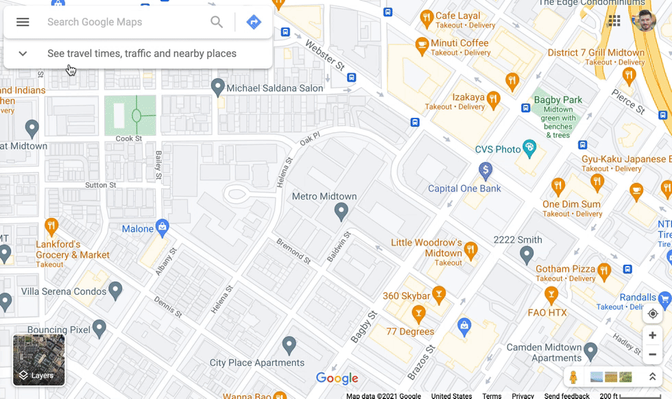
Ensure you have set north points correctly. Learn more in the article, Are your North Points set up correctly?
After uploading your tour, please allow up to 48 hours for the connections to appear on Google Maps. Google may take some time to process the panoramas and their links.
If your connections are still not visible after this time, please open the CloudPano GSV Editor and check your panoramas for any upload errors.
You may also want to confirm that:
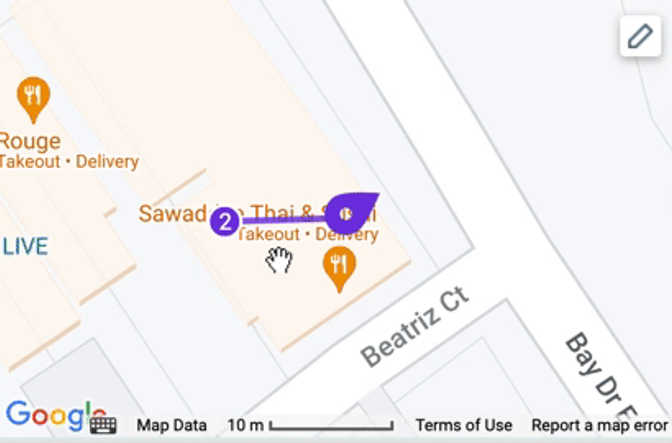
Pay attention to the distance key on the map in CloudPano GSV Editor. The default view has a distance key of 10m. Zoom in and pay attention to distance between photo spheres when placing photos.
A common problem we are seeing is this:
User makes a GSV tour on CloudPano and publishes to GSV.
User views GSV tour on Google and doesnt like something about it.
User deletes photos on Google.
User returns to GSV Editor on CloudPano, makes changes, and publishes.
The major problem occurs at step 3. When the user deletes photos from Google, the relationship between CloudPano’s record of the tour photos and Google’s record of the photos is broken. CloudPano cannot update a photo that no longer exists. We are building a solution for this scenario.
If you are still stuck after reviewing the above article, feel free to send us a message or email at support@cloudpano.com . We are happy to help.